Room Service
Settings
Enable/Disable Service: Toggle Room Service on/off. If off, guests won’t see it when scanning the QR code.
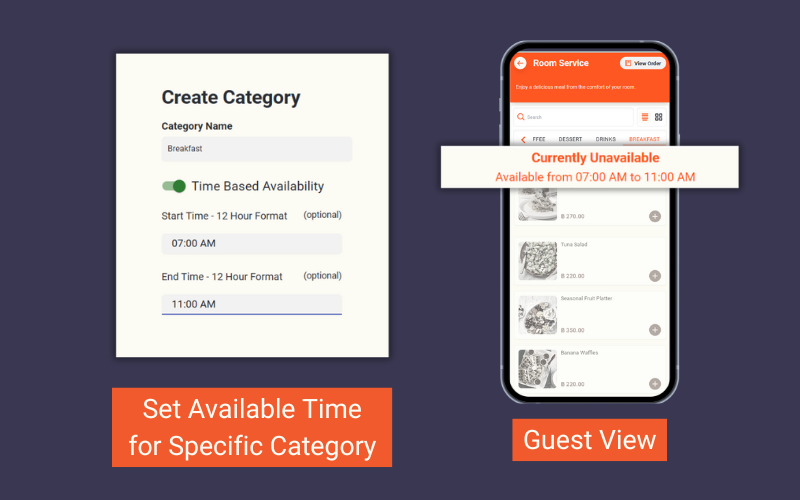
Time-Based Availability: Set specific times for when guests can place orders. When outside the available time range, it will show as “unavailable” to guests.
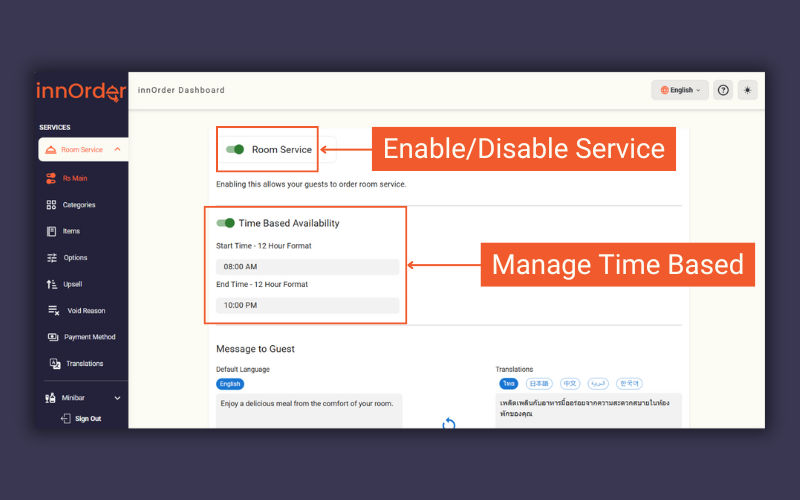
Toggle Room Service on/off & set time range
Message to Guest: Enter a custom message for guests.
User Acceptance Checkbox: Require guests to agree to “I understand orders are final and cannot be canceled once confirmed” before ordering.
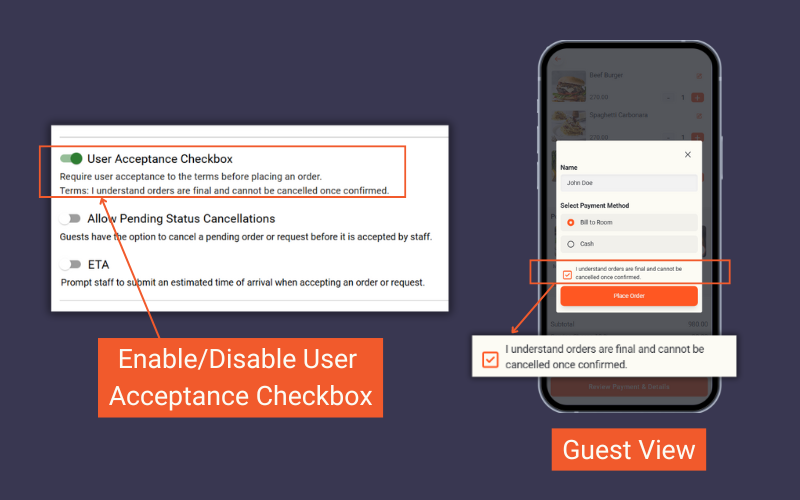
User Acceptance Checkbox
Allow Pending Status Cancellations: Let guests cancel pending orders if staff have not accepted it yet.
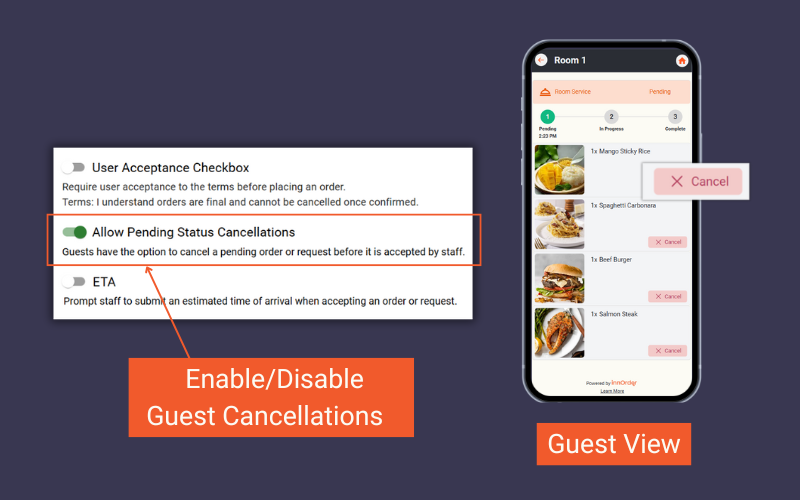
Guests have the option to cancel Pending requests
ETA: Provide guests with an estimated time of order completion. Staff must input an ETA when accepting an order.
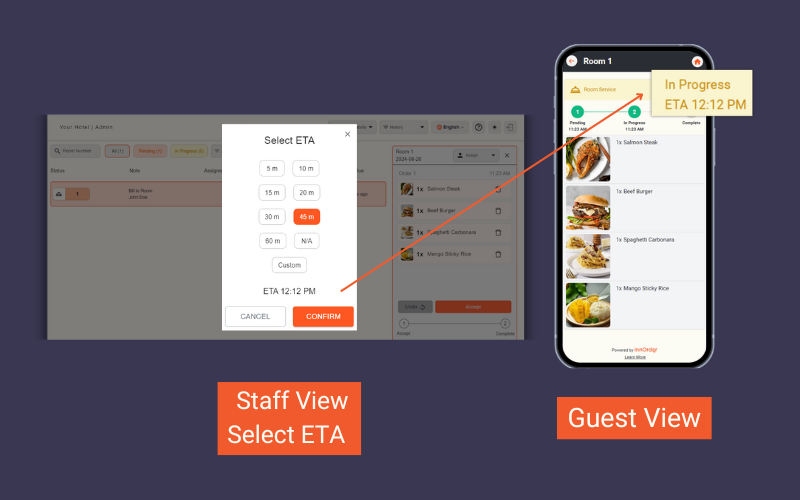
ETA
Service Charge & Tax: Enter applicable percentages.
Rounding Rules: Set any rounding rules if needed.
Void Reason: Staff must select a void reason when voiding an item. Pre-created reasons include Out of Stock, Kitchen Error, Customer Error. You can add, edit, or delete reasons.
Payment Method: Guests choose a payment method (e.g., bill to room, cash). Add, edit, or delete methods here.
Creating & Editing the Menu
Categories: Organize menu items by creating categories. Use “+ Create Category” to add new ones. Enable time-based availability if needed (e.g., Breakfast available from 7 AM to 10 AM).
Items: Add menu items within categories. Use “+ Create Item” to upload an image, name the item, set a price, and optionally add a description. Add options as needed.
Select Type: Choose between Food or Beverage for report categorization.
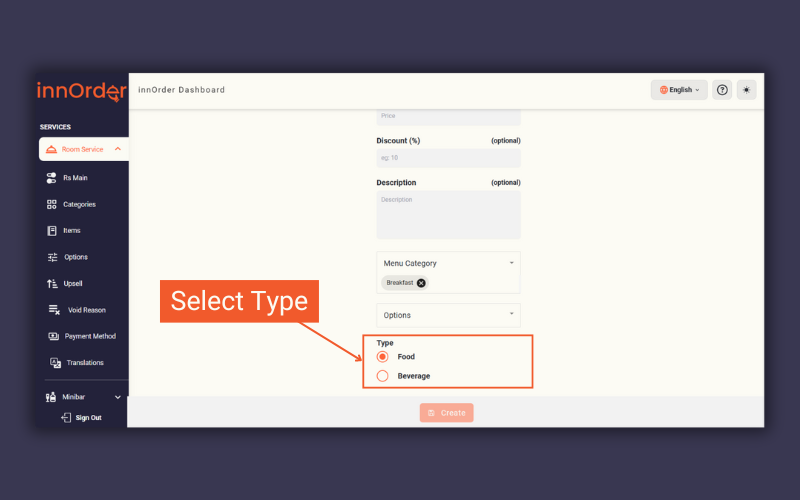
Select Food or Beverage
Options
Allow guests to customize menu items by creating options.
Create Option: Name the option and decide if it's required.
Min/Max Choices: Set the range of choices guests can select. For example, if you set Min # to 1 and Max # to 3, guests must choose at least one option and can choose up to three.
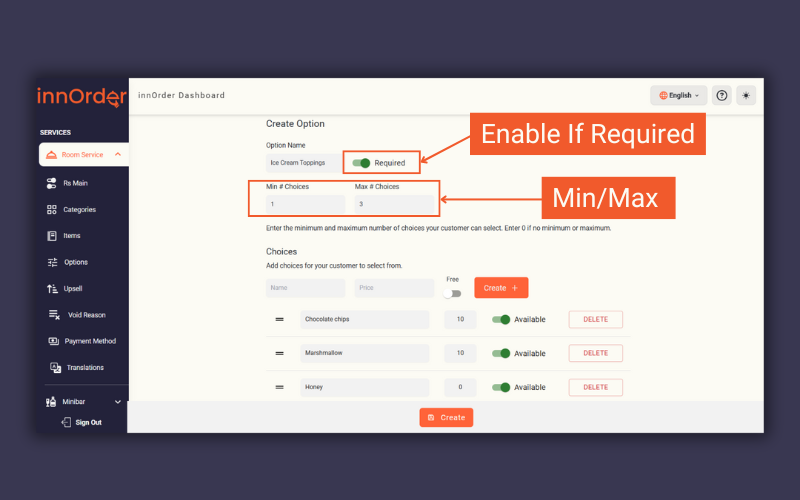
Choices: Name each choice, set prices, or mark as free.
Apply to Menu Items: Select applicable items for these options.
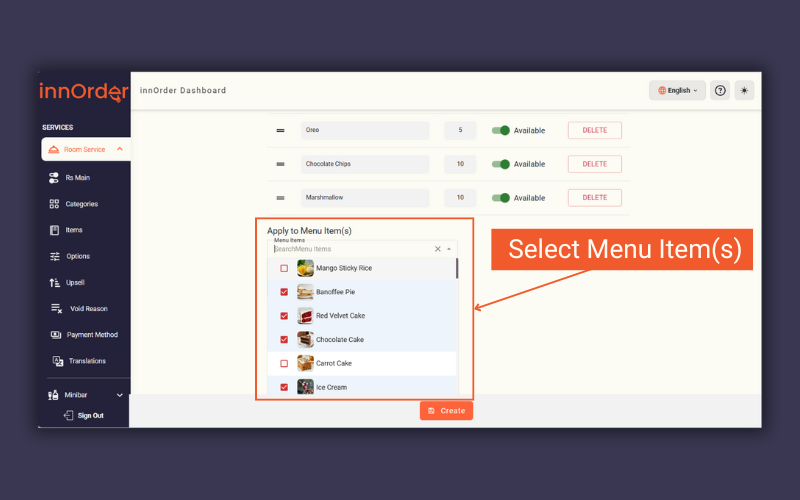
Apply to the option to menu items
Upsell
Upsell on Items: Create upsell categories (e.g., “Thirsty? 🍹”) and add items. Then apply this upsell to specific menu items.
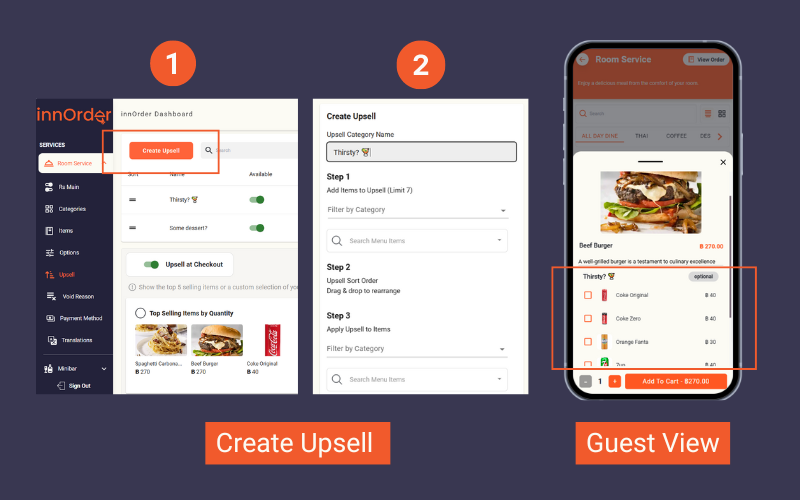
Creating Upsells
Upsell at Checkout: Toggle on to display top-selling or customized items at checkout.
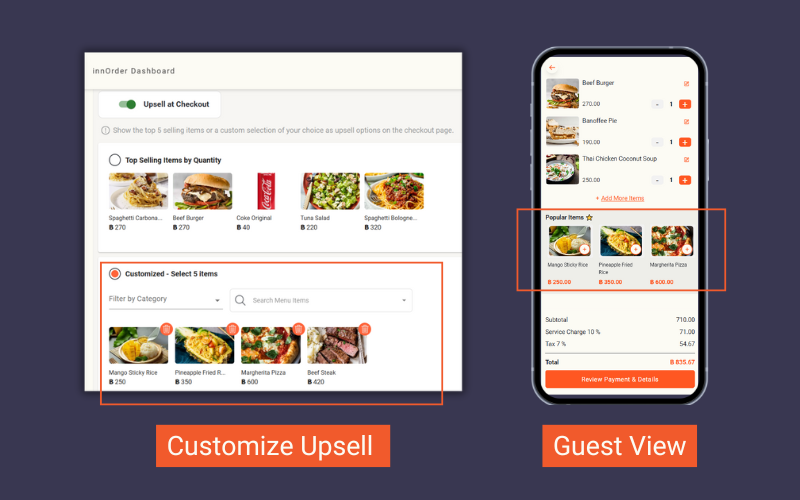
Upsell at Checkout
Translations
Translations: Menu entries will be automatically translated to other languages enabled in your settings. Double-check accuracy, edit as needed, or sync to auto-translate again.
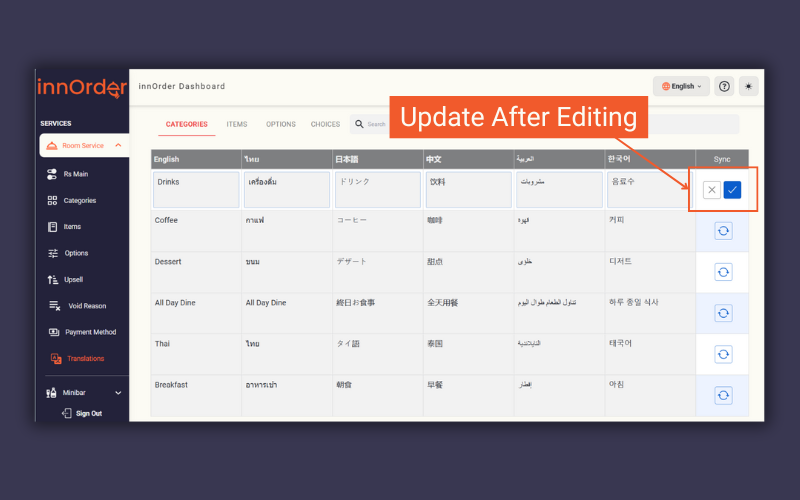
Click the check to save changes or x to cancel